User manual
Roles
The TkDQMDoctor distinguishes between 3 different Roles
- Shifter
- Shift Leader
- Admins
Each role has their set of rights which are explained in the following chapters.
Login
The first thing a user has to do in order to be able to modify data is to login. The recommended way of logging is using CERN Single sign-on by clicking on the “Login with CERN” button.
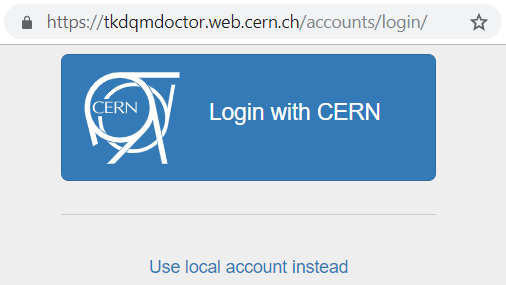
If the user wants to log in with a local account that is only used by the TkDQMDoctor website instead, he can do so by entering the credentials and clicking on “Sign in”.
Logging in with CERN updates the user privileges automatically, such that shift leaders are detected by the e-groups the user is a member of. The Shift Leader e-group is automatically assigned and does not have to be updated manually.
Shifter
Add a Certification
Adding a new run certification can be done by clicking the “Add Run” button in the navigation bar at the top of the page.
This will open a new form in which the certified run can be filled with.
The form consists of the following elements:
- Type: What kind of run is it?
- Reference Run Which Reference Run was used to certify this run?
- Run number
- Trackermap: Does the Trackermap exist or is it missing?
- Number of luminosity sections
- Integrated luminosity
- Pixel: Status of the Pixel Component (good/ bad/ excluded/ low statistics)
- SiStrip: Status of the SiStrip Component
- Tracking: Status of the Tracking?
- Problem categories: A list checkboxes with problems that appeared in this run
- Comment: Extra comments that are worth to mention
- Date: The date of the certification
The first thing a shifter might want to do is specify what kind of run it is. A run can be either “Collisions” or “Cosmics” as run type and either “Prompt”, “Express” or “reReco” as reconstruction type. By clicking the corresponding checkboxes, the list of possible type and references runs will be updated to only show the necessary ones with the most recent first.
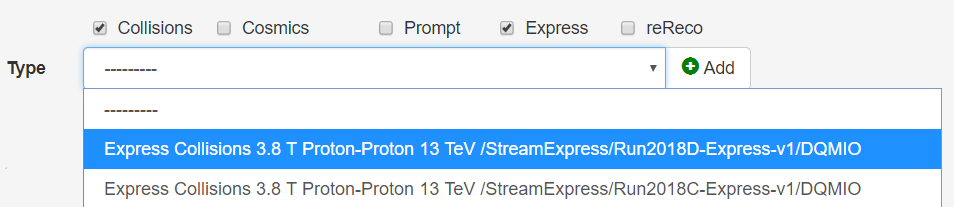
If the shifter does not want the list of references runs to be matching with the run type, then he can uncheck the “Match Type” checkbox. Then the shifter can then proceed with filling the rest of the form.
Checklists
Some fields have required “Checklists” which have to be checked to be able to submit a new run certification. The checklists consist of instructions which have to be performed in order to certify the data correctly. It also includes links with easy access to external tools that should be used during the data certification process.
A certified run cannot be submitted unless every checkbox is read and checked. This ensures that no shortcuts are taken and to improve the quality of certifications.
Add a Type
If the desired Type does not exist in the dropdown list of types, then a new type can be added by click on the “Add” button next to the dropdown list. The shifter can then enter the details of the new type in the redirected page.

Automatic Form validation
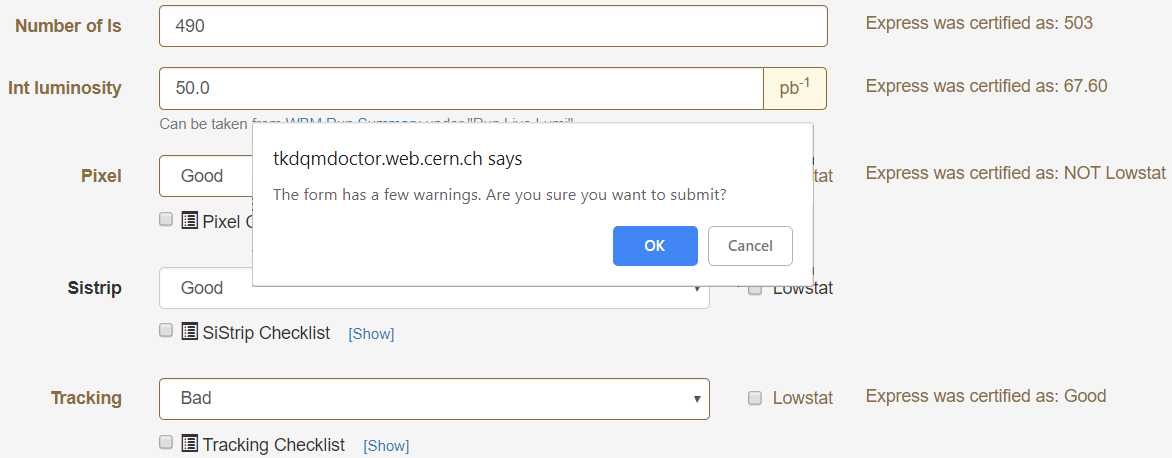
A number of form validations are implemented in order to help the shifter to submit correct data. For example, if the SiStrip component was certified as “Bad”, then it is impossible to certify Tracking as “Good”.

The form also checks for inconsistency between other certified runs. If for example a run with the run number 322487 was certified “Good” in Stream Express but “Bad” in Prompt then the form warns the shifter that the data is inconsistent and should be checked. If a form has warnings the run can still be submitted but does require extra caution and explicit confirmation.
Once a run is created with the “Create” button at the bottom of the form, the run will appear in the list of Certified runs. If the shifter wants to edit a certified run, he can do so by clicking on the “Edit” button in the list of certified runs.
Shift Leader
Once a shift leader logs in via CERN SSO, the website automatically detects the shift leader status by the e-groups the user is associated with. In particular, the current shift leader should always be automatically assigned to the e-group “cms-tracker-offline-shiftleader”.
The user can ensure he has shift leader rights by checking if a “Shift Leader” or an “Admin Settings” tab appears in the navigation bar.

Admin Settings
The admin settings are a special site which can only be accessed by users with the necessary privileges.
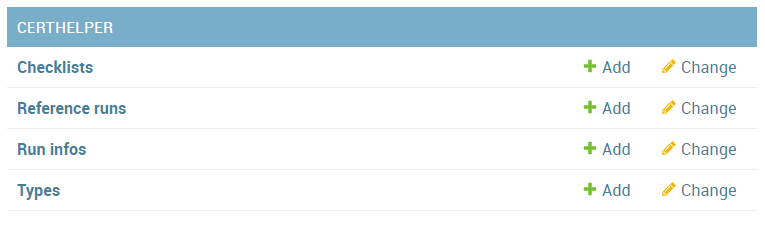
Add Reference Run
A new reference run can be added in the Admin Settings by clicking on “+ Add” next to Reference runs.
Add (problem) categories
A new problem category can be added in the Admin Settings by clicking on “+ Add” next to Categories.
Update Checklists
There are five checklists which are displayed in the “Add Run” form. Each checklist has a unique “identifier” naming pixel, sistrip, tracking, general and trackermap. The identifiers are important to associate a form field with the corresponding checklist. The content of a checklist can be updated in the admin panel by clicking on the corresponding title.
Shift Leader View
In the shift leader view, a shift leader receives information about all the certified run for the current week. The page consists of multiple tools, which facilitate the shift leader in creating weekly shift leader reports.
Filter
At the top of the page, the shift leader can filter the certified runs by his needs. If no filters were specified, then the current week is automatically selected.
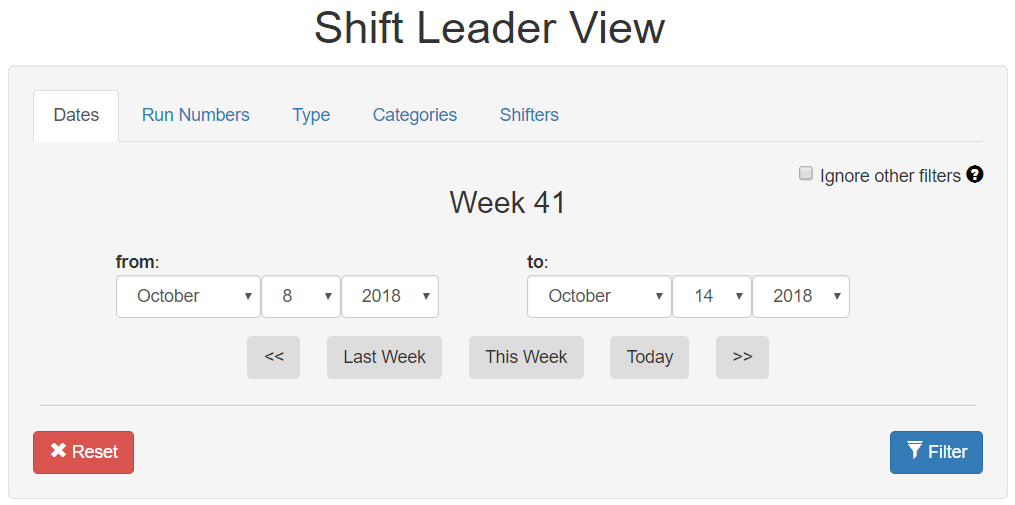
The runs can be filtered by time, run number, run type, problem categories or specific shifters. When clicking the “Filter” button, the whole shift leader page gets updated according to the specified criteria.
Certified Runs tab
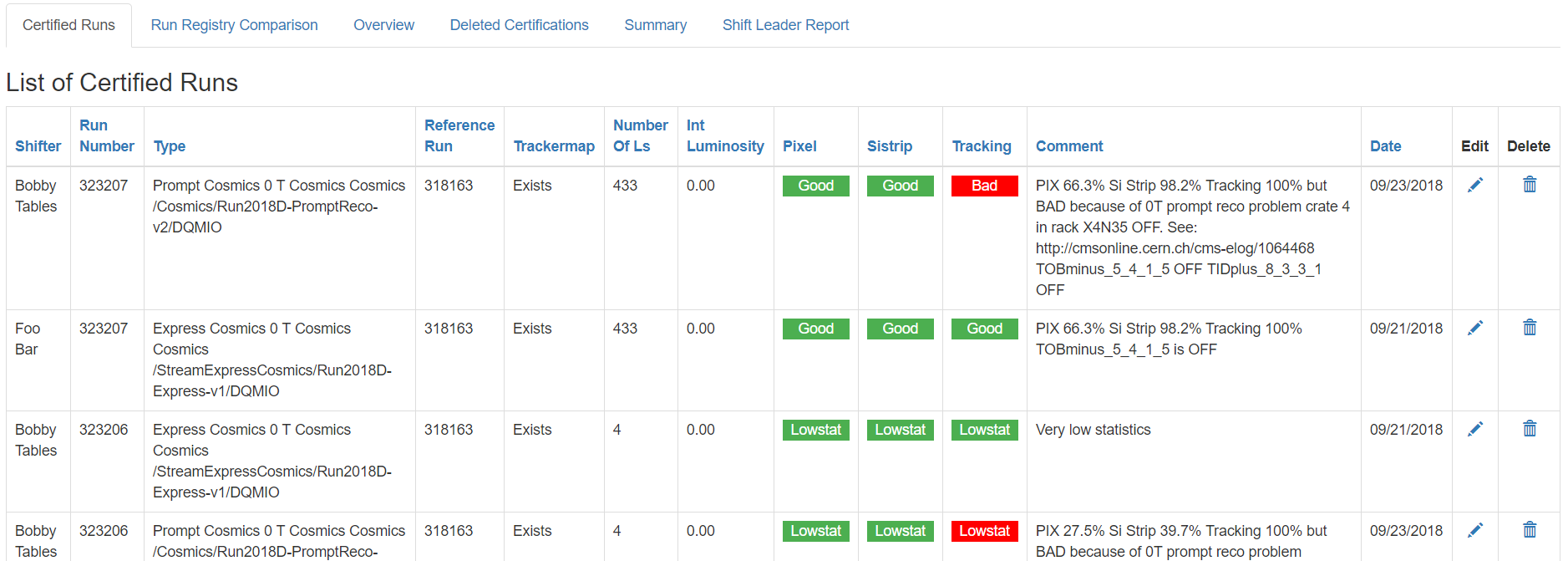
In the “Certified Runs” tab a tabular list of all the certified runs for the current week (or specified filter criteria) is shown. The shift leader has the right to edit the certifications of the shifters or delete them entirely. It is essential to keep the list of certified runs correct in order to generate accurate shift leader reports.
Run Registry Comparison tab
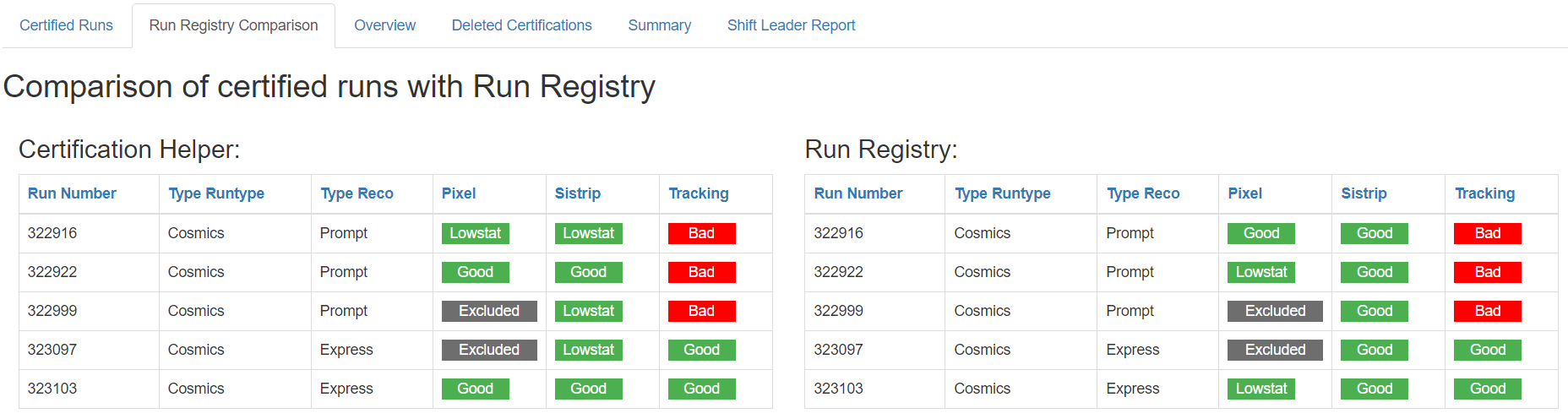
In the “Run Registry Comparison” tab, the shifter can verify that the runs in the Certification helper match with the entries in the Run Registry. If any runs differ, they will be listed in this tab. A shift leader can then edit the runs himself or tell the shifter to update them accordingly.
Overview tab
In the “Overview” tab a quick overview of the certified runs can be seen. It also consists of the list of shifters for that week.
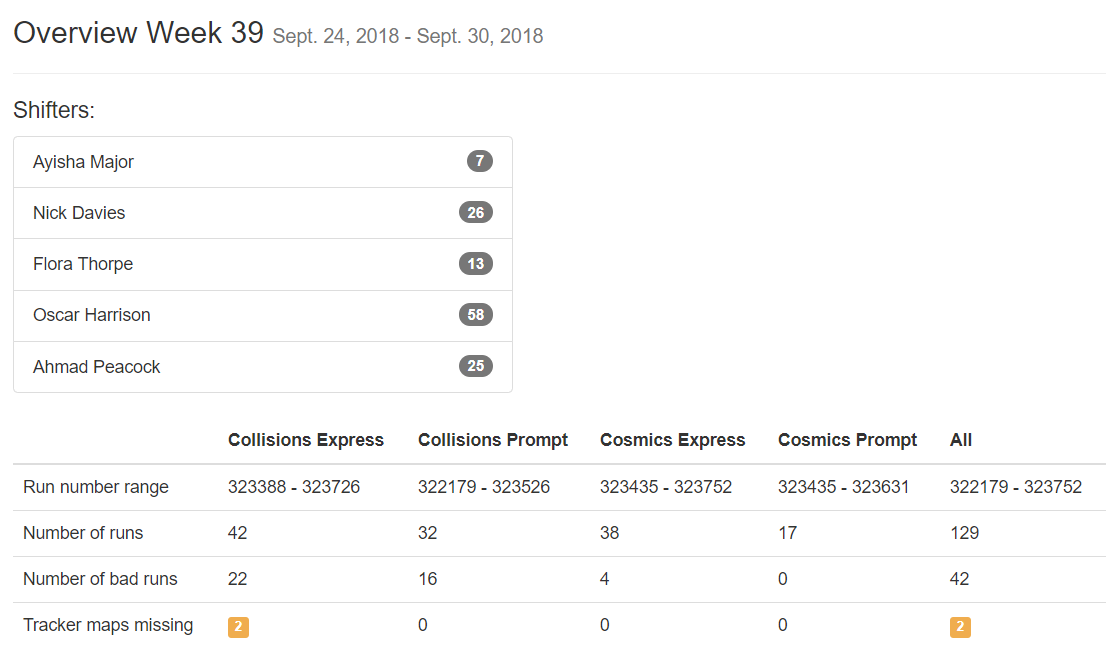
Delete Certifications
If a run gets deleted by shift leader it can still be restored in the “Deleted Certifications” tab. If the shift leader wishes he can also irrevocably delete the certification of the run there.
Summary tab
In the “Summary” tab the shift leader can generate the same kind of summary report that the shifters submit to the ELOG. It is just a textual version of all the certifications.
Shift Leader Report tab
The most useful tab for shift leaders is the “Shift leader Report” tab. It automatically generates slides for the weekly shift leader report.
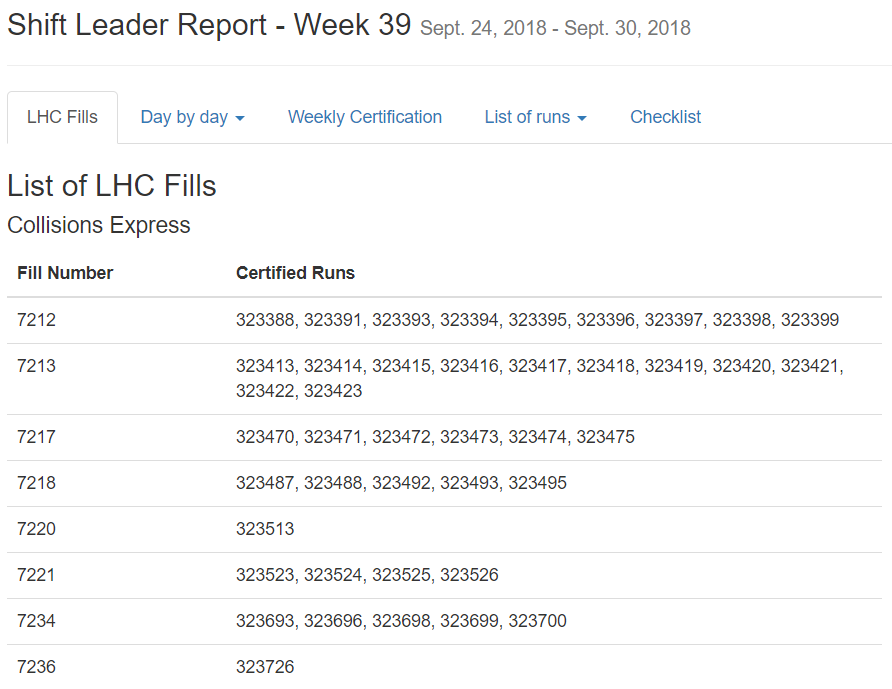
List of LHC Fills
This page lists all the LHC fills that were part in a certification that week. The LHC fill number is taken from the Run Registry via the resthub API.
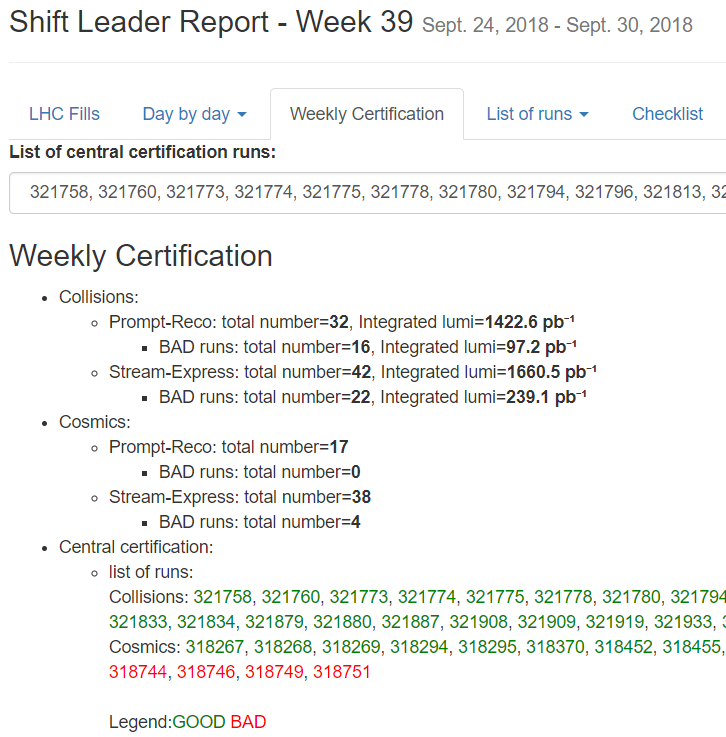
Weekly Certification
This tab generates the slide called “Weekly certification”. It sums up the number of certified runs for each type and the corresponding integrated luminosity.
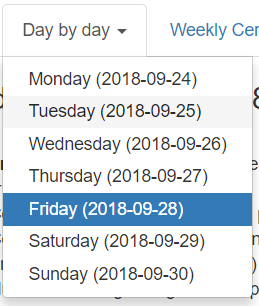
List of runs
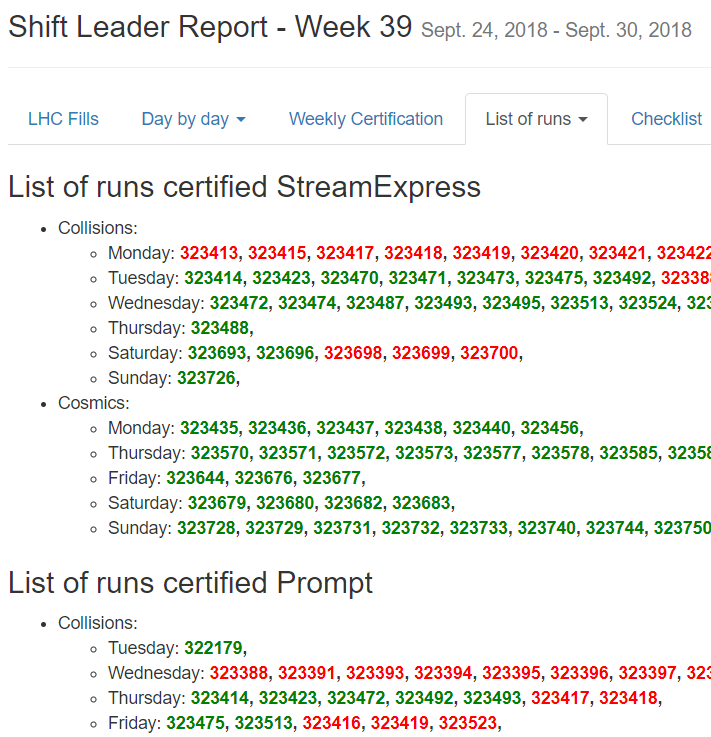
This page list all the run numbers of runs certified that were certified that week, grouped by reconstruction type and day. The run numbers are colored green if the run was certified “Good” and red for “Bad”.
Administrator
The administrator has the most power in the website. He can create new (local) users and is responsible for maintaining the website. He can update or create the OAuth2 keys, which are necessary for CERN Single sign-on.
The admin panel of the administrator consists of all of the same rights that a shift leader has plus additional settings that for site management.